Article
How to Share a Video Project With Your Team (Without Emailing MP4s)
Invite editors by email, work on the same timeline, and keep owned vs shared projects separate—practical guide for agencies and in-house teams.

Editor workflow & product
Practical guides for repurposing long video into shorts—written by the team building Short Bytes.
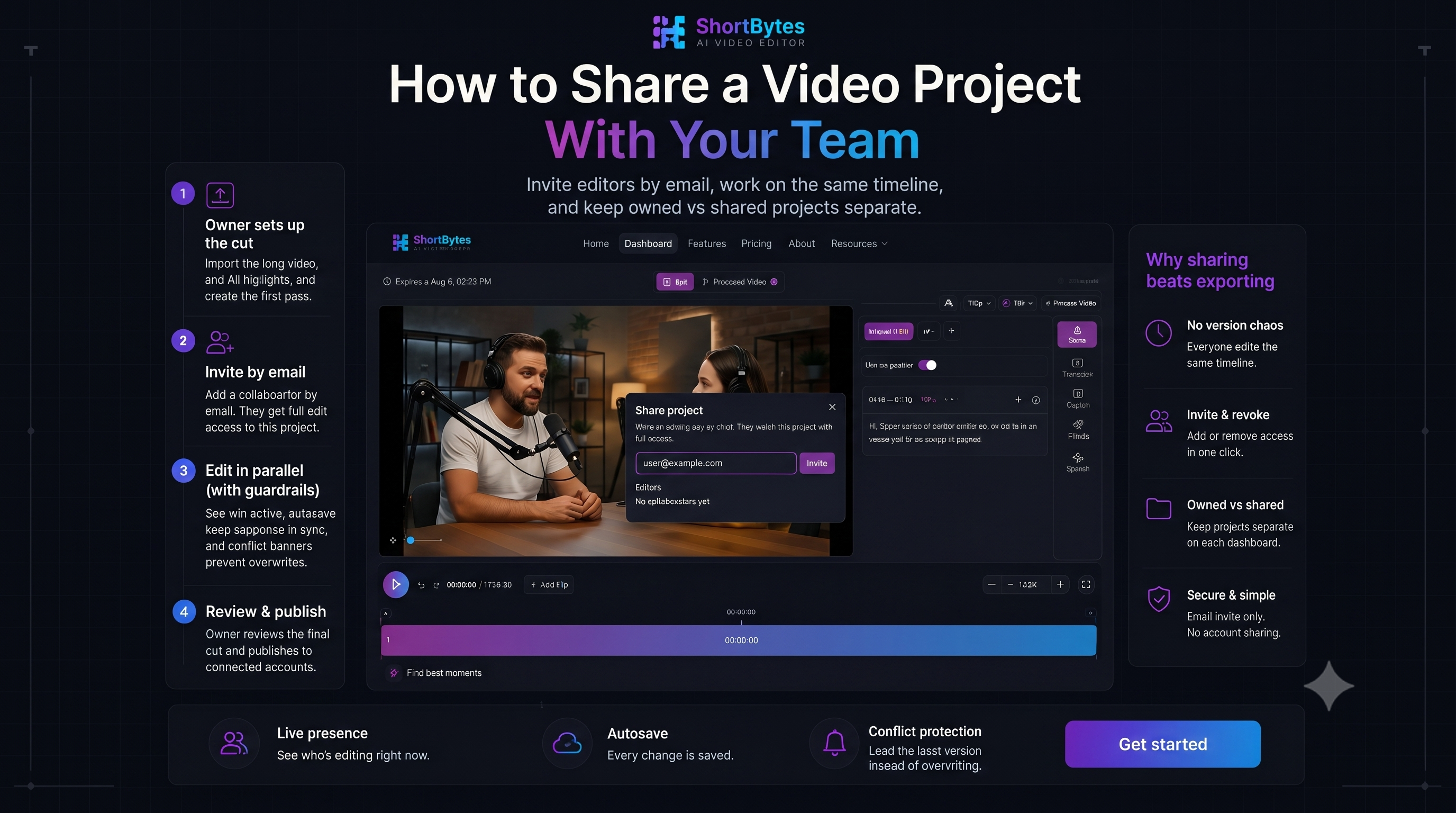
If you repurpose long video for clients or a content team, you have probably lived this loop: export a draft, upload to Drive, get notes in Slack, re-export, repeat. The file is never the source of truth—the project is.
Short Bytes treats a project like a shared workspace: one timeline, one source video, invite-only access.
When sharing beats exporting
| Situation | Export + email | Shared project | | --- | --- | --- | | Client wants hook trimmed by 2s | New MP4, new thread | Edit segment, autosave | | Two editors on different time zones | Version chaos | Each opens same project | | Revoke access after delivery | Hope they deleted the file | Remove collaborator in one click |
Step 1 — Owner sets up the cut
The project owner imports the long source (upload or YouTube URL), runs AI highlights or marks ranges manually, and lays down the first pass on the timeline. You do not need a perfect cut before inviting someone—just enough structure that collaborators are not staring at a blank project.
Step 2 — Invite by email
From the Share button on a project you own, add a collaborator by email. They must already have a Short Bytes account. They get full edit access on that project: trim, captions, reframe, processing, and export—not view-only comments.
No password sharing. No “log into my account” requests.
Step 3 — Edit in parallel (with guardrails)
When a collaborator is in the editor, presence shows who is active. Autosave keeps the project current. If someone else saves while you are mid-edit, you get a banner to load the latest version instead of silently overwriting their work.
That is the trade-off of real collaboration vs locking files: you coordinate, but you never lose the timeline as the single source of truth.
Step 4 — Shared vs owned on the dashboard
Collaborators see shared projects on their dashboard, separate from projects they own. Owners keep billing and storage on their account; collaborators work inside projects they were invited to.
What collaborators can (and cannot) do
Can: edit timeline segments, style captions, run reframe, export, and publish from the shared project—same capabilities as the owner for that project.
Cannot: invite other people unless they are the owner (only the owner manages the share list), or access projects they were not invited to.
Project sharing is on paid plans—see pricing for current details.
A simple team workflow
- Owner — import episode, AI clip pass, rough vertical reframe
- Editor — tighten hooks, caption styling, audio cleanup
- Owner — final review, publish to connected TikTok / YouTube / Instagram accounts
If you are comparing tools, see our team collaboration use case and the collaboration feature page.
Try project sharing on your next cut
Invite a teammate on a real project—timeline, captions, and publish in one place.
Get startedAlso read: Agency repurposing workflow · Short Bytes vs Descript